
Chapter 06 : Images, brand kits and video
Jay generates and edits images, applies your visual identity to everything it produces, and puts together short animated videos. Three tools, one logic: you describe, Jay suggests, you refine by talking.
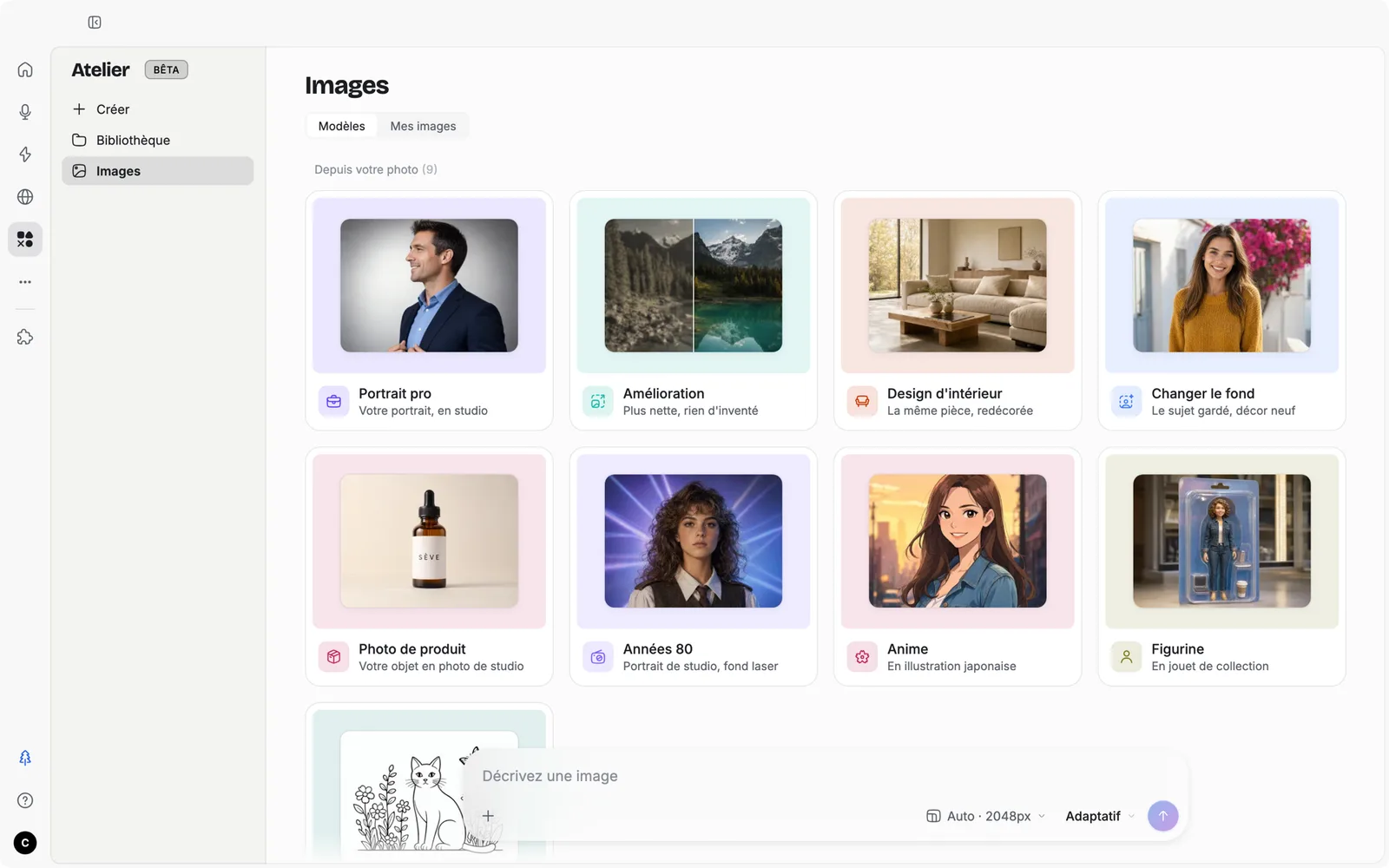
Some screenshots show the app in French; the English interface has the same layout.
Image mode
Images are available on every plan. Image mode is something you choose, not something Jay guesses: in the "+" in the bar, under Do, choose Image (or type /image), and your messages produce images. The Image chip shows in front of the field; its cross hands you back to the agent. Outside this mode, an image request goes to the agent, which generates it like any other tool; it's slower but it can file it, name it, insert it into a document.
Once an image has been produced, Jay judges each message: an edit or a new image keeps it in Image mode; any other request hands control back to the agent. All your images end up in the Atelier, in the Images section, under "My images". The Templates tab there offers ready-made transformations of your photo: professional portrait, enhancement without inventing anything, interior design, background change, product photo, and a few more playful styles. "Create, Image" opens a session in Image mode, with an empty bar.
| Setting | Options |
|---|---|
| Image model | Auto; Fast, ideal for iterating; Thinking, sharp text in the image, slower |
| Format | Auto (photo or 4:3), Square, Landscape, Portrait, Story, Widescreen |
Image mode isn't available in an incognito session.
Create a visual in [square / story / widescreen] format for [platform].
Main message: [under 10 words]. Audience: [audience]. Mood: [understated, warm, technical]. Colors: those of the [name] brand kit.
Suggest 3 different directions, then develop the one I choose.
Brand kits: your identity, applied everywhere
A brand kit, in the Atelier, is much more than a palette. It's a page in sections: Overview, Colors, Typography, Spacing, Corner radius, Shadows, Components, Brand (your voice, your words, the ones to avoid), Presentations and documents (backgrounds, logo, footer, templates), Assets (logos, fonts, images). Every value is a named token, sorted into groups, with a usage note that Jay reads; every color has one value for light and one for dark. Once chosen, the brand kit dresses your documents, presentations, mockups, visuals and videos, and charts take on the same colors everywhere.
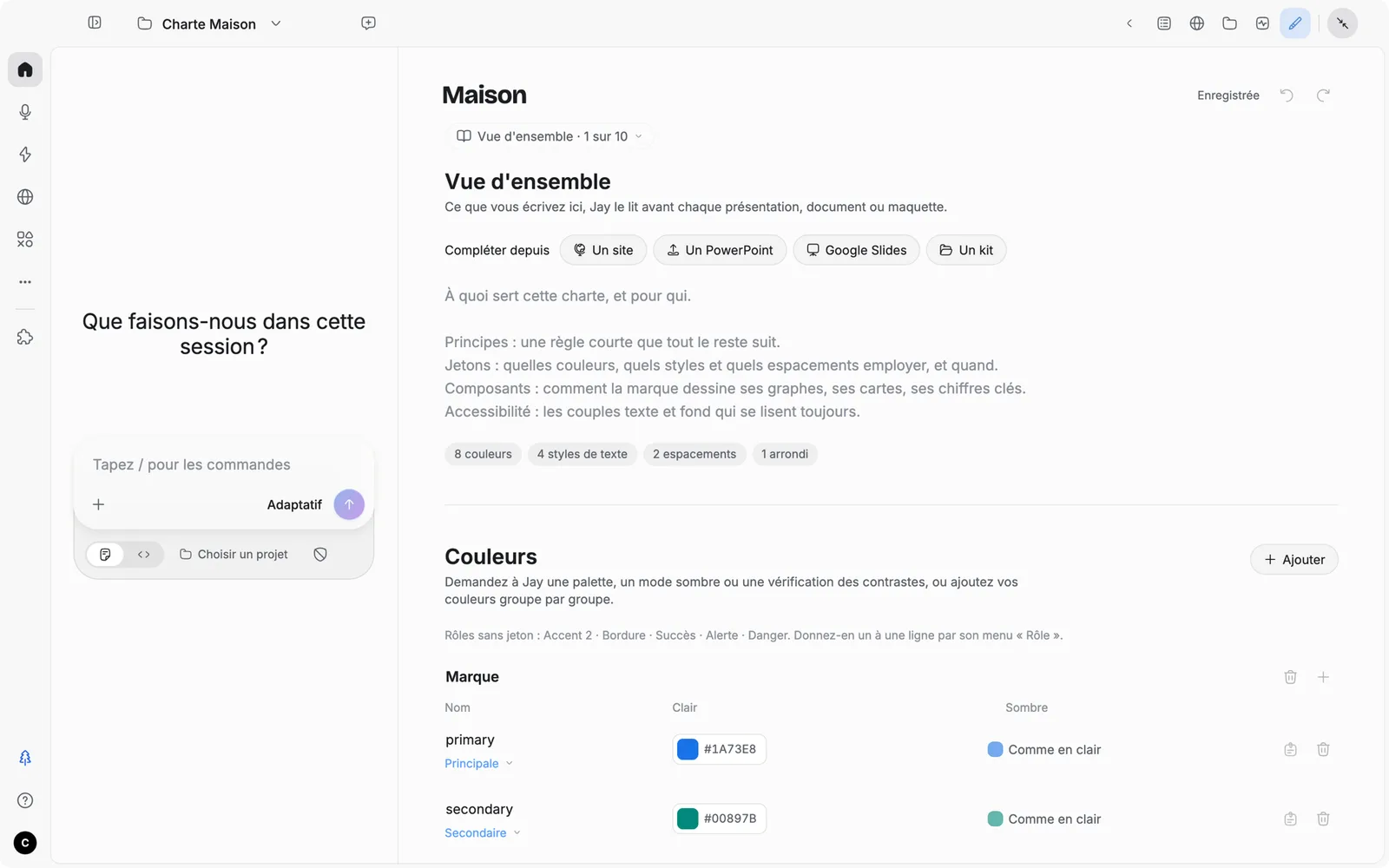
A brand kit has its own session. Opening a brand kit means opening its conversation: the page shows wide in the drawer, on its Brand kit panel, and you evolve it by talking to Jay ("add an alert orange", "make me the key figures card"). That's how the "Components and templates" list fills up, each item with its preview. A piece created in that session carries the brand kit automatically, and the brand kit lists every piece that carries it. With Ask access, Jay shows you each change to the brand kit before writing it.
A brand kit exports as a kit (a folder or a .zip) that you send to a colleague; they import it into their Atelier.
| To create a brand kit | What you do |
|---|---|
| From a website | "Create, Brand kit", then "From a website": colors, fonts, styles, logo and images picked up from the page. Or, in any session: "make the brand kit for [address]" |
| From your presentations | "From a PowerPoint" or "From Google Slides": the theme, the styles in use, the backgrounds and the logo |
| From a kit | "Import a kit": a brand kit exported by Jay |
| From scratch | A blank brand kit opens in its session: describe your brand, Jay fills it in |
| From a project's code | The Design System (below) exports as a brand kit |
These sources also work on an existing brand kit: Jay shows you what they would change before applying it.
Create a "[name]" brand kit from [presentation file] and [logo].
Pick up: the backgrounds, the logo placement, the footer, the fonts, the colors by role, and the 5 slide templates I use most.
Add the writing rules: [formal or informal address, title length, what we never write].
Show me the result on a 4-slide deck before saving it.
A project's Design System
For a code project, the drawer has a Design System tab. There, Jay reads the project's code and extracts the real system: the colors, sizes, spacing and components as they are actually used, and the drift (the same color written six different ways). It suggests fixes with their evidence, writes the tokens and a Jay/DESIGN.md file whose "House rules" section belongs to you. It isn't a brand kit: it's the truth of the code, which can then be exported as a brand kit or to Figma (chapter 15).
Video: short animations in MP4
Jay puts together animated videos: a teaser, a title sequence, a number counting up, a chart building itself, a map lighting up. The engine is built into the app; nothing goes to a server. The result is an Atelier piece, an MP4 in 16:9, 9:16 for social media, or 1:1, in your brand kit's fonts.
Before writing the video, Jay shows you a brief card: the message, the length, the format, the scenes. Approve it, that's where everything is decided. Ready-made scenes speed it up: a number going up, a map of France, a computer, a terminal, an AI answer being typed out, subtitles. The finished video opens in the Atelier player.
Make a 20-second video, 9:16 format, to announce [event or launch] on [platform].
Message: [one sentence]. Key figure: [figure]. Brand kit: [name].
Scenes: a hook, the figure counting up, three benefits appearing one by one, the logo and the date. No music.
Show me the brief before rendering the video.