
Chapter 01 : Getting started with Jay
Jay is an agent that lives on your Mac. It reads, writes, analyzes, codes, and above all it acts: in your folders, in your browser, in your apps and in your online tools. It runs on open source models hosted in France, and nothing you give it is sent to the companies that make those models.
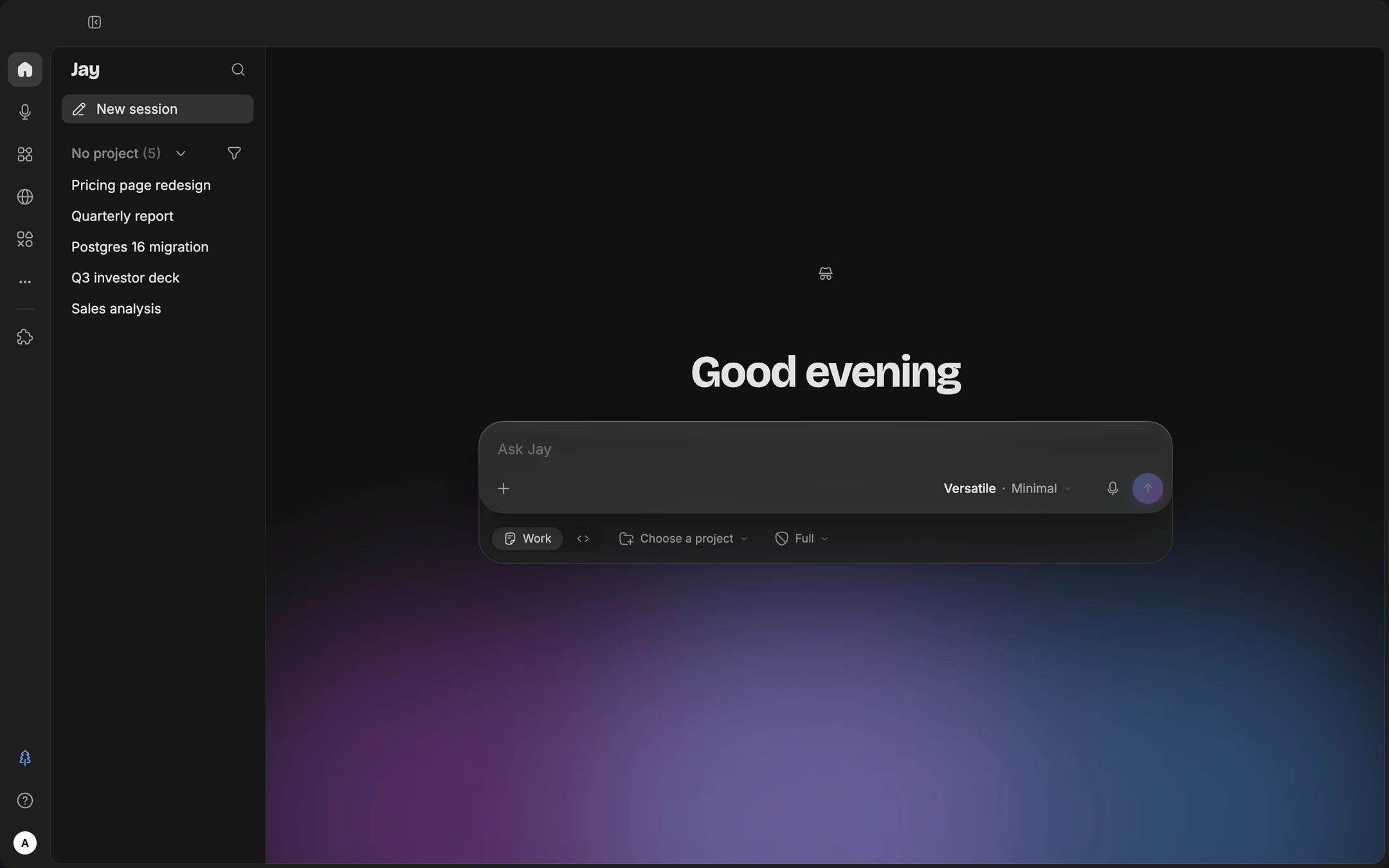
Some screenshots show the app in French; the English interface has the same layout.
Most people start by asking it questions, one at a time. That's the use that pays off the least. Jay shows what it can really do when you open a folder for it and hand it a complete job: the goal, the context, the tools, and the freedom to come back with a finished result.
What changes with an agent on your computer
| An online assistant | Jay |
|---|---|
| You send it a file | It opens the folder itself, reads what's inside and saves its work there |
| It gives you text to copy | It writes the document, spreadsheet or presentation, and the file exists on your disk |
| It describes what you should do on a website | It opens the site in its Browser, clicks, fills in, and shows you |
| It forgets between conversations | It remembers, and finds your past sessions and meetings |
| It stops when you close the tab | Its Flows run on schedule, even with the window closed |
This power comes with a trade-off: Jay can modify files and act on your behalf. That's why every action goes through an access level you choose: Ask, where Jay asks before each action, Auto, or Full (chapter 13).
Installing it
Jay is a macOS app for Apple Silicon Macs (macOS 12 or later). You install it from the DMG file provided by dev-id, like any other app: drag it into Applications, open it, sign in.
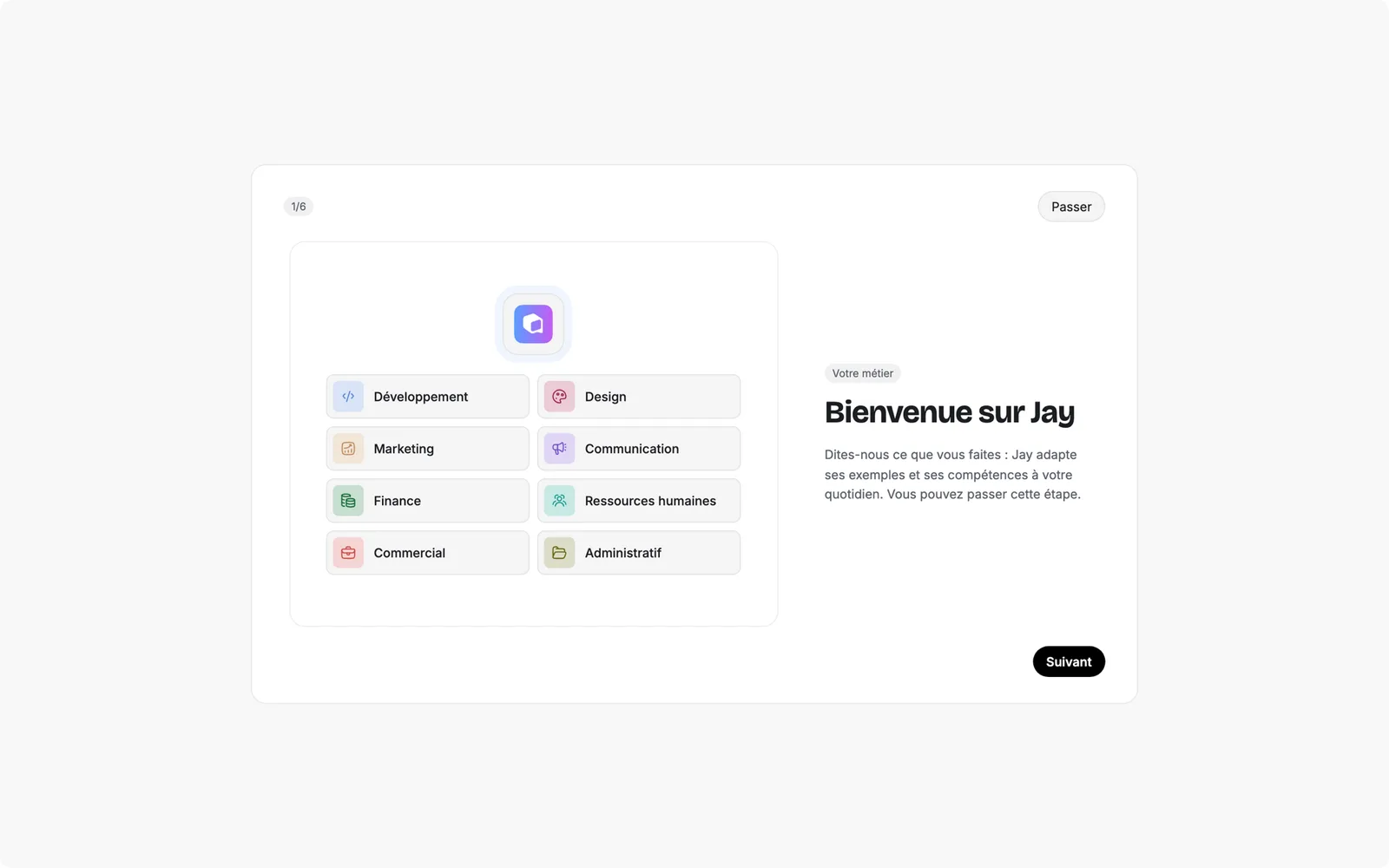
- Onboarding. On first launch, Jay introduces itself in six screens: your job, one session for everything (with the modes), Jay working for you (the Browser, your apps), you staying in control, your accent color, then your profile. Don't skip the first or the last one: your job and your profile shape every answer that follows (chapter 3).
- Updates. Jay updates itself. In Settings, System, Updates, you choose between "Install automatically" (when you quit or when Jay is idle) and "Ask me". A badge at the bottom of the icon bar signals that a version is ready, and "What's new" opens once after each update to tell you what changed.
- The lock. If other people get near your Mac, turn on "Lock with Touch ID" in Settings, System: on opening, or on opening and whenever the Mac locks.
Which plan to choose
Every Jay plan unlocks the same features: all the modes, images, the Browser, DOPE. The only thing that changes from one plan to the next is the volume of work. Paid plans are monthly, with no commitment: a cancellation takes effect at the end of the paid month. Prices are on the website and in Settings, Account. Oreus subscribers have their own plan, purchased from Oreus on top of their subscription.
| Plan | What it unlocks |
|---|---|
| Jay Trial | All features, with a one-time allowance of one million free tokens, with no time limit, to try Jay on real work |
| Jay Pro | All features, with a weekly and monthly volume for daily use |
| Jay Ultra | The same, with much more volume |
| Jay Giga | The same, with the most volume, for people who run Jay all day |
| Oreus | For Oreus subscribers, purchased on app.oreus.ai: Jay and your Oreus agents in the same bar; DOPE is not included |
Modes: which one for which task
Jay isn't a single model but a family of modes. Each mode has a stable name and a promise; the open source model behind it is shown in the picker, and it can change when a better model comes along. The more powerful a mode, the slower it is and the more of your volume it uses. The right habit: Adaptive for everyday work, Thinking or Expert for what really matters.
| Mode | Its promise | When to use it |
|---|---|---|
| Adaptive | Picks the right mode for each request | By default. You stop thinking about it. |
| Versatile | For everyday work | Routine writing, tidying up, most tasks; at Minimal effort, quick answers |
| Thinking | Handle complex tasks | Analyses, decisions, calculations, long tool-heavy tasks |
| Expert | Most capable, for demanding projects | What has to be right the first time |
The old Fast mode has merged into Versatile: choose Versatile at Minimal effort to get the same instant answer. A session left on Fast reopens on its own in Versatile Minimal.
Effort. For the modes that reason, a second setting, effort, decides how much time the model spends thinking before it answers: Minimal, High (the default), Max. In Adaptive, it's called Automatic and sets itself. Raise the effort for a decision, lower it for a rewording. A separate row, Ultra intelligence, makes Jay follow a stricter method: it rereads its work with a critical eye when a doubt remains, and runs the tests itself for a change it hasn't verified. It uses more volume; save it for work that can't afford mistakes.
Images. The picker also has an Image models group: Fast (FLUX.2-klein-4B) to iterate, Thinking (Ink 1.4) when the image has to carry crisp text (chapter 6).
A tour of the interface
Jay's window is a frame and a card. The frame is the icon bar on the left: the places. The card is everything else: the place's sidebar and the work area.
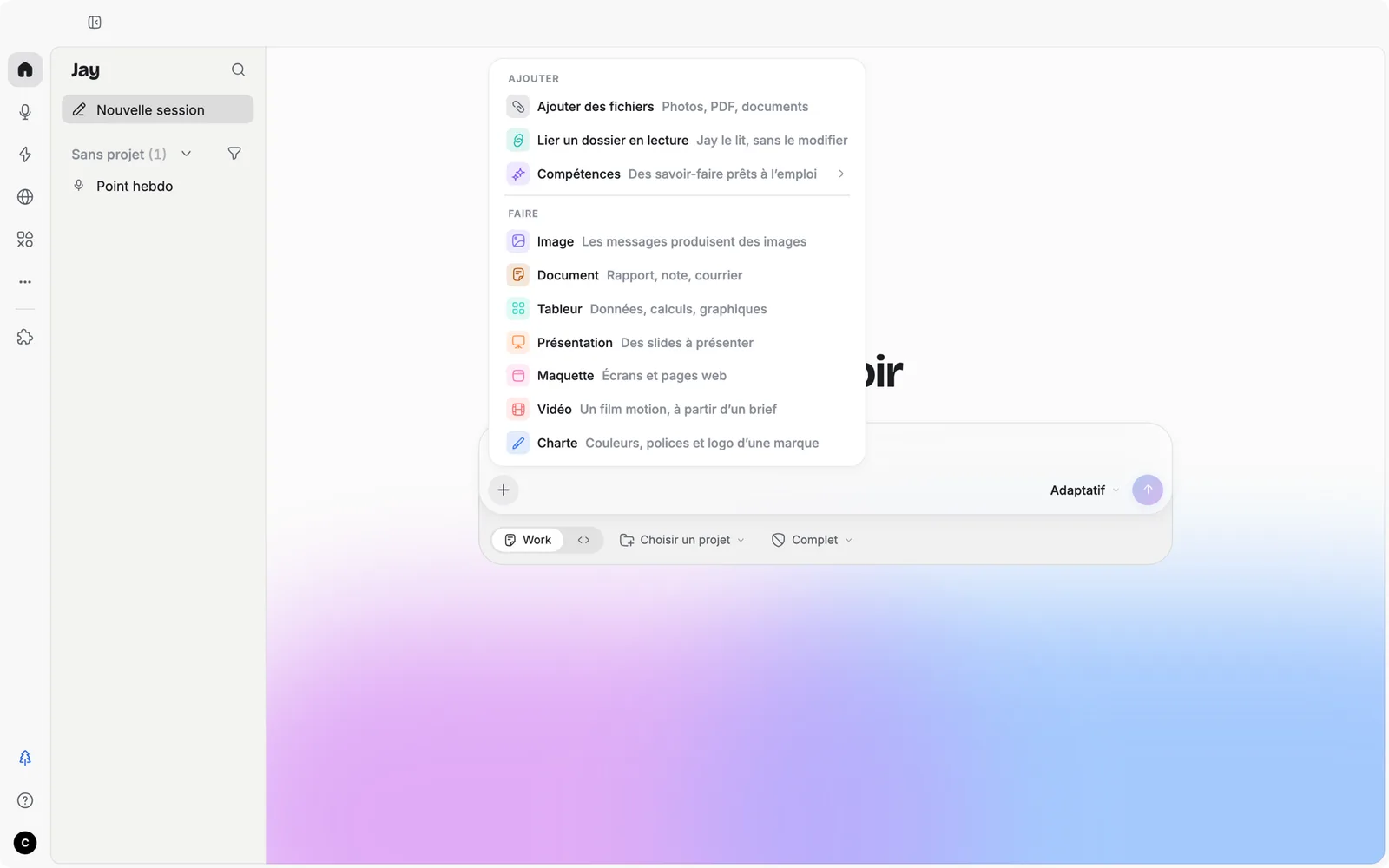
| Element | What it is | What you do there |
|---|---|---|
| The icon bar | Jay's places: Home, Meetings, Flows, Browser, Atelier, then, below the divider, Customize. All are pinned by default; the "···" button lists them and lets you unpin some. | Switch places. At the bottom: Mini Jay, the update, your account and Settings. |
| The sessions rail | In Home: your projects, your pinned sessions, your sections. | "New session", "New meeting". |
| The message bar | A single bar, for everything. It only shows what's there: your files, the project, a mode that's on, a card from Jay. | The "+" adds (files, linked folder, Skills) and does (Plan, Image, an Atelier piece). Below it: the Work / Code switch, the project and the access level: Ask, Auto, Full. |
| The mode picker | The right engine for the session. | Change mode and effort. The bottom of the menu reminds you where the models run. |
| The drawer | The right half of the session; a row of buttons in the header opens each panel. | Session info, Activity, Web, Files, Code, Terminal, Atelier, and, depending on the session, Design System or Brand kit. |
| ⌘K | The single search. | Find a session, a meeting, a skill, an app, even archived. |
| Mini Jay | The companion, the question mark at the bottom of the bar, or ⌘⇧J. | A quick question, about Jay or anything else, without keeping anything. |
Work or Code. There is now only one type of session: you chat in it, write documents in it, code in it. A switch, at the top of the drawer under the bar, only changes what it shows. In Work, the bar offers Atelier pieces and images; in Code, it shows the branch, the isolated copy, the diff and a Terminal button, and the "+" offers Plan. Nobody has to choose before writing: a session whose folder is a Git repository starts in Code, all others in Work, and you switch whenever you like, without losing anything. Each position keeps its own access level (chapter 13). A project without a folder also exists: it's for organizing sessions.
Your first hour with Jay
Start with what changes the quality of answers the most, then move straight on to a real task.
- Fill in your job profile. Settings, Jobs: who you are, your rules, the equipment Jay installs for you. Five minutes, and every answer benefits (chapter 3).
- Create your first project with a folder. A client, a recurring report, a monitoring topic. Jay keeps its memory, documents and meetings there (chapter 4).
- Connect two tools. Your calendar and your email, for example, from Customize, Applications. Jay will be able to prepare your day (chapter 10).
- Run a real test, in Ask access. Take a real task from your week, the longest one, and hand it entirely to Jay with the brief from chapter 2. A Work session starts in Full access: for this first test, switch its access picker to Ask, and reread every permission card. That's how you learn what it does.
- Open the drawer. The Activity panel shows what Jay is doing right now, the Files panel what it has written. A single block closes each turn: the summary, the question it's asking you, the files produced, the time and the tokens. You'll always know where it stands.
I've just started using Jay. I'm a [your job] and I spend most of my time on [your 3 main tasks]. My work files are in [folder].
Ask me 5 questions to understand my work. Then suggest the 5 uses of Jay that would save me the most time this week, ranked from simplest to most ambitious, each with an example message to send you and what you would need to be able to open (folder, tool, website).