
Chapter 10 : Applications and connectors
Without connectors, you spend your time copying and pasting between Jay and your tools. With them, Jay reads your email, your calendar, your Notion pages, your accounting, and acts directly in them, with your approval. In Jay, connectors have one more advantage: they combine with your files and your Mac apps.
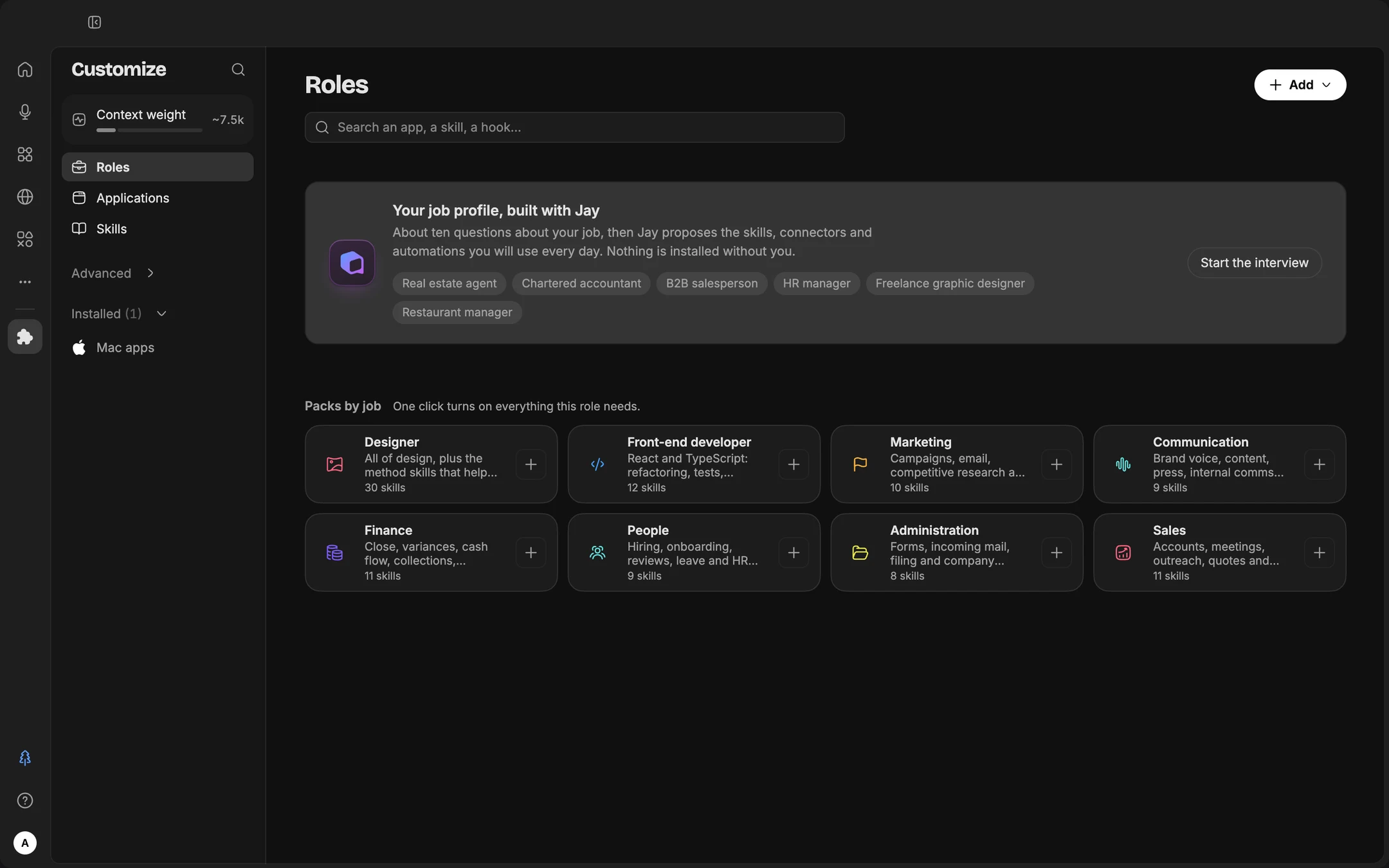
The Customize place
Extensions and Skills have merged into a single place, Customize, at the bottom of the icon bar. It speaks in two families: Applications, what Jay can connect to, and Skills, what it knows how to do (chapter 11). It opens on Roles: packs by role that one click turns on, and “From your sessions”, what you often ask Jay for that isn't installed yet.
Each card has a “+” to add it. Clicking the card opens its details: what it does, its weight in the context, the connection (the account, the key) in the same place, and examples that launch a session with the request directly. A single button, “Add”, covers everything: connect an application, create or import a skill, and, under “Advanced”, an MCP server, a hook or a sub-agent. ⌘K, opened from Customize, searches only within that place.
Three ways to connect a tool
| Jay's connectors | Mac apps | MCP servers | |
|---|---|---|---|
| What it is | Integrations written by dev-id for the most common tools | The apps already installed on your Mac, which Jay drives | The universal plug: any tool that offers an MCP server connects to Jay |
| Examples | Gmail, Google Drive, Google Calendar, Notion, Qonto, Pennylane, Pappers, HubSpot, Slack, Asana, Axonaut, GitHub, Payfit, SNCF, Open data France… | Notes, Reminders, Contacts, Calendar, Mail, Messages, Music, Photos | Linear, Stripe, Supabase, Pipedrive, data.gouv.fr, Sketch, Blender, and your company's internal tools |
| How it connects | An OAuth connection, a token or an API key, in its details | Nothing: the app is there. macOS asks for permission the first time | From the catalog, or “Add, Advanced, MCP server” |
| Where | Customize, Applications | Customize, Applications | Customize, Applications, or Advanced, MCP servers |
Google, as three applications. Gmail, Google Drive and Google Calendar connect one at a time, each with its own approval at Google: you give Jay only what you need. Several Google accounts can coexist; for each service, Jay uses the account that has it. “Disconnect” on a card cuts off the service in Jay; to revoke access at Google, disconnect the whole account.
What each connector can do
| Connector | What Jay can do | What it never does |
|---|---|---|
| Google Calendar | Read your calendar, find time slots, create and edit events, with a Meet link | |
| Google Drive | Create Docs, Sheets and Slides, write in them, edit a file whose link you provide, export a file there; in the Lab, search, read and organize across the whole Drive | Share without asking you |
| Gmail | Send an email, always after your confirmation; in the Lab, search, read, sort, organize, prepare drafts | Send without explicit confirmation, even with Full access |
| Notion | Search, read, query a database, create a page, append, edit, create a database, add rows, comment | Delete |
| Qonto | Read accounts and transactions, attach a receipt, manage invoices, quotes, credit notes, clients and reminders | A transfer, of any kind |
| Pennylane | Read, and the full write API: receipts, reconciliations, invoices, quotes, journal entries, matching, FEC exports | |
| HubSpot, Asana, Axonaut, Slack | Read, then create and update records, tasks, quotes; post in Slack | Delete |
| GitHub | Search your repositories, read, follow Actions, open issues and pull requests | Merge, approve |
| Pappers, Open data France | Look up a company, its executives, its BODACC notices, an address; Open data France with no key at all | |
| Payfit | Read the team and absences | Read payroll: salaries, IBANs, social security numbers are never sent |
| SNCF | Schedules, routes, disruptions | Book |
| LinkedIn, Microsoft 365 | Coming soon: publish a post or a comment, for LinkedIn; Outlook, OneDrive and Teams, for Microsoft 365 | |
| Mac Mail and Messages | Prepare a draft in Mail; send a message in Messages | Send an email; send a message without your approval |
Anything that goes to a person always asks. An email, a Slack message, a Notion comment, an invoice sent through Pennylane or Qonto, an edited event whose guests will be notified: Jay shows you the card and waits for your approval, even with Full access. Creating or editing a record, on the other hand, follows the access level.
Full access to Gmail and Drive (reading, searching, organizing) depends on a security audit required by Google: it remains reserved for the Lab. Calendar, sending email and the Google files you point to are open to everyone.
MCP, explained simply
MCP (Model Context Protocol) is the open standard that lets you connect an AI to any tool. Think of it as a universal plug. Jay connects to it in the cleanest way there is: it registers itself with the server, with no pre-registered ID or shared secret, and you authorize access in your browser. The day a tool opens an MCP server, it works in Jay without an update. When a Jay connector exists for a tool, Jay prefers it over the MCP server that duplicates it.
Winning combinations
| Combination | What you ask |
|---|---|
| Calendar + Mail + Drive | “Prepare my meetings for tomorrow: for each one, the latest exchanges with the participants and the useful documents.” |
| Notion + project folder | “Update the project's Notion page with the decisions from the last three meeting minutes in the folder.” |
| Pennylane + Qonto | “Match the receipts in the Invoices folder with this month's payments, and list what's still missing a receipt.” |
| Pappers + Open data France + Browser | “Before the meeting, put together the profile of [company]: legal identity, executives, BODACC notices, recent news.” |
| Meetings + Calendar + Mail | “From yesterday's meeting, create the deadlines in the calendar and prepare the follow-up email.” |
Look at my calendar for today and my unread emails from the last 24 hours.
Give me: the 3 things that need action from me, what I need to prepare for each meeting (latest exchanges, related documents in the Drive or in [folder]), and the emails I can ignore.
Draft the simple replies, without sending anything.